Step 1: Create a Lead Mapper Account
Start your journey by setting up a Lead Mapper account. Follow these simple steps:
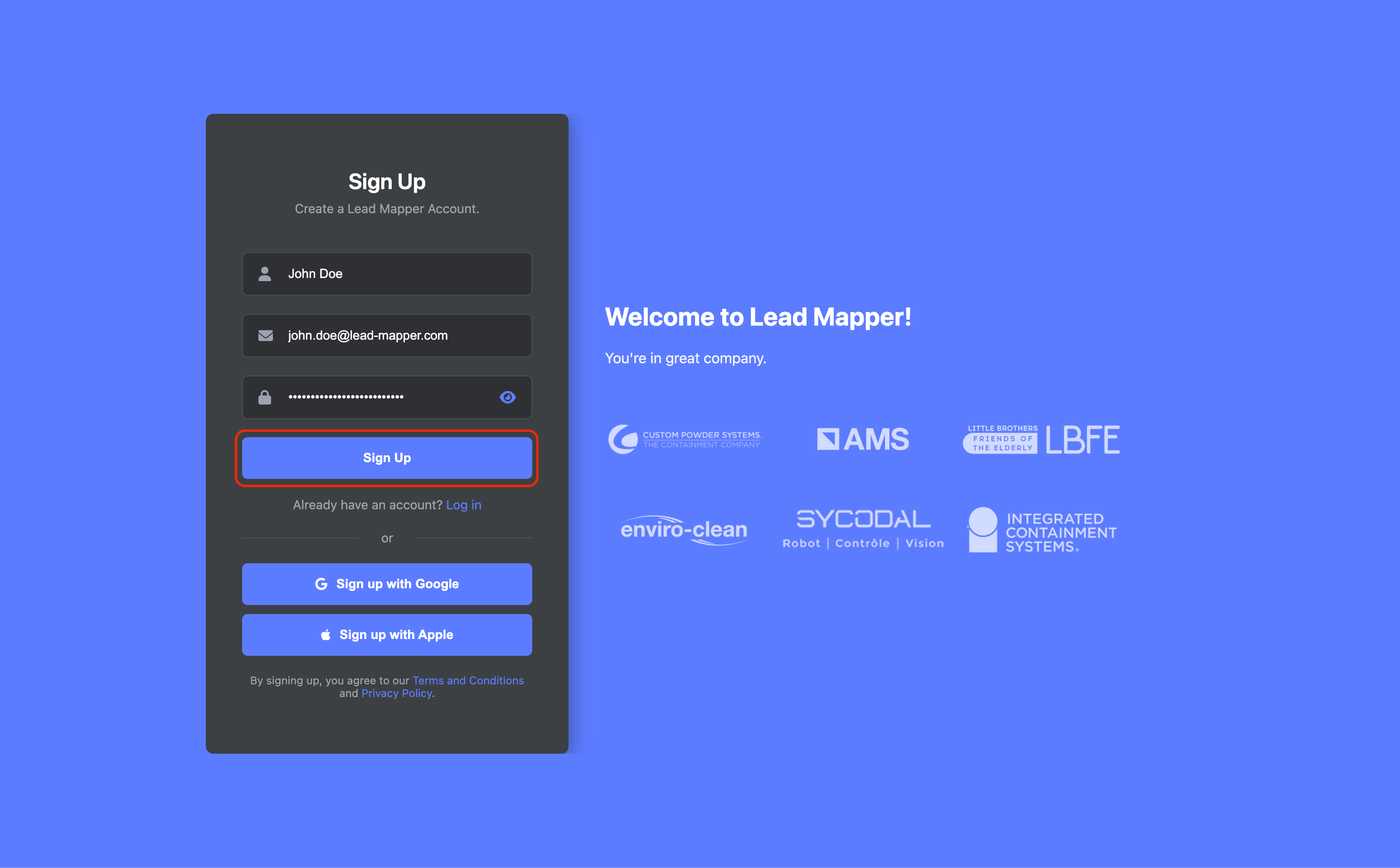
Go to Lead Mapper's website fill in your name, email address, and password, then click the "Sign Up" button to create your account.
Step 2: Connecting Lead Mapper with Pipedrive
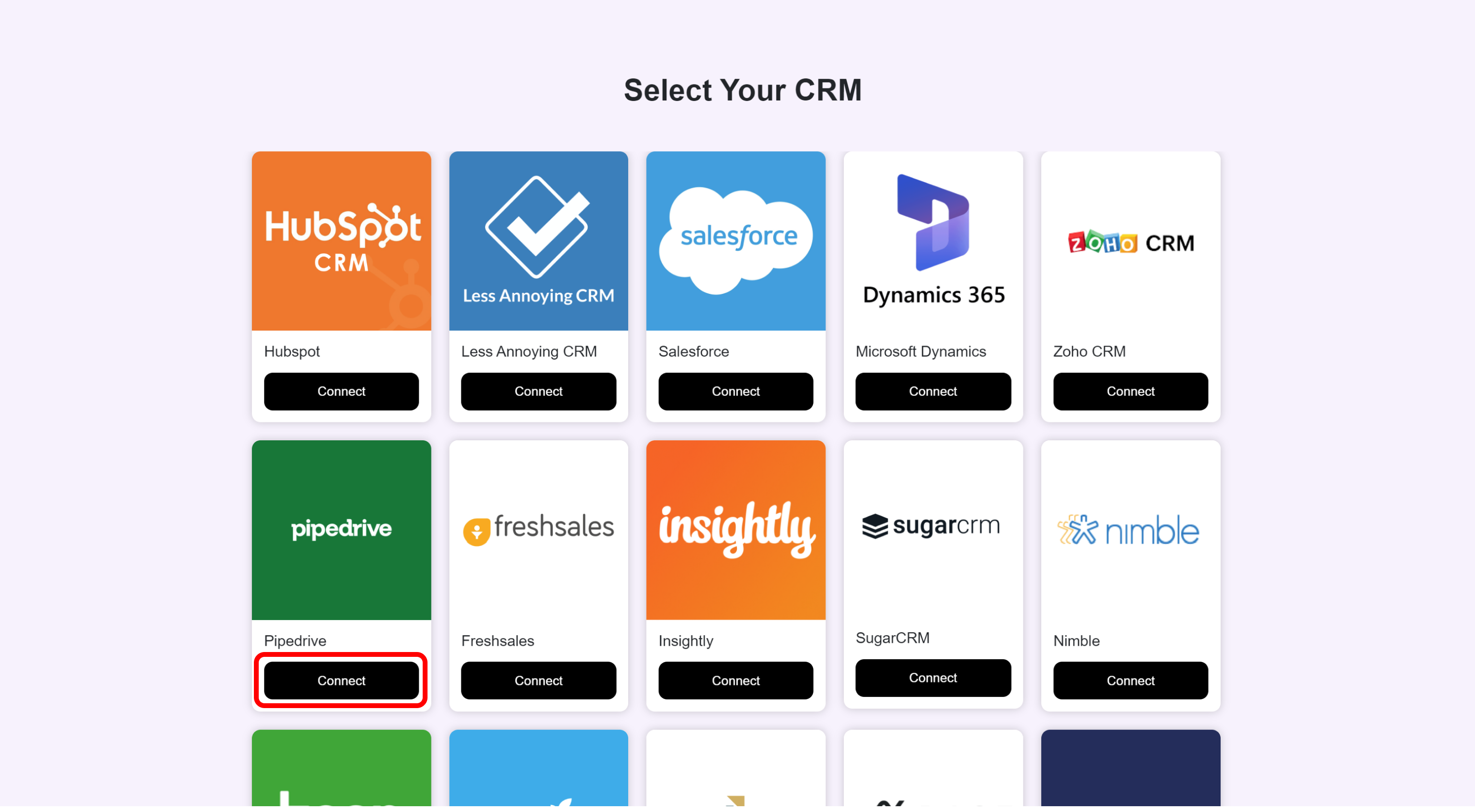
Now that you have a Lead Mapper account, let's establish a connection with Pipedrive. Here's how:
Click on the "Connect" option for Pipedrive.
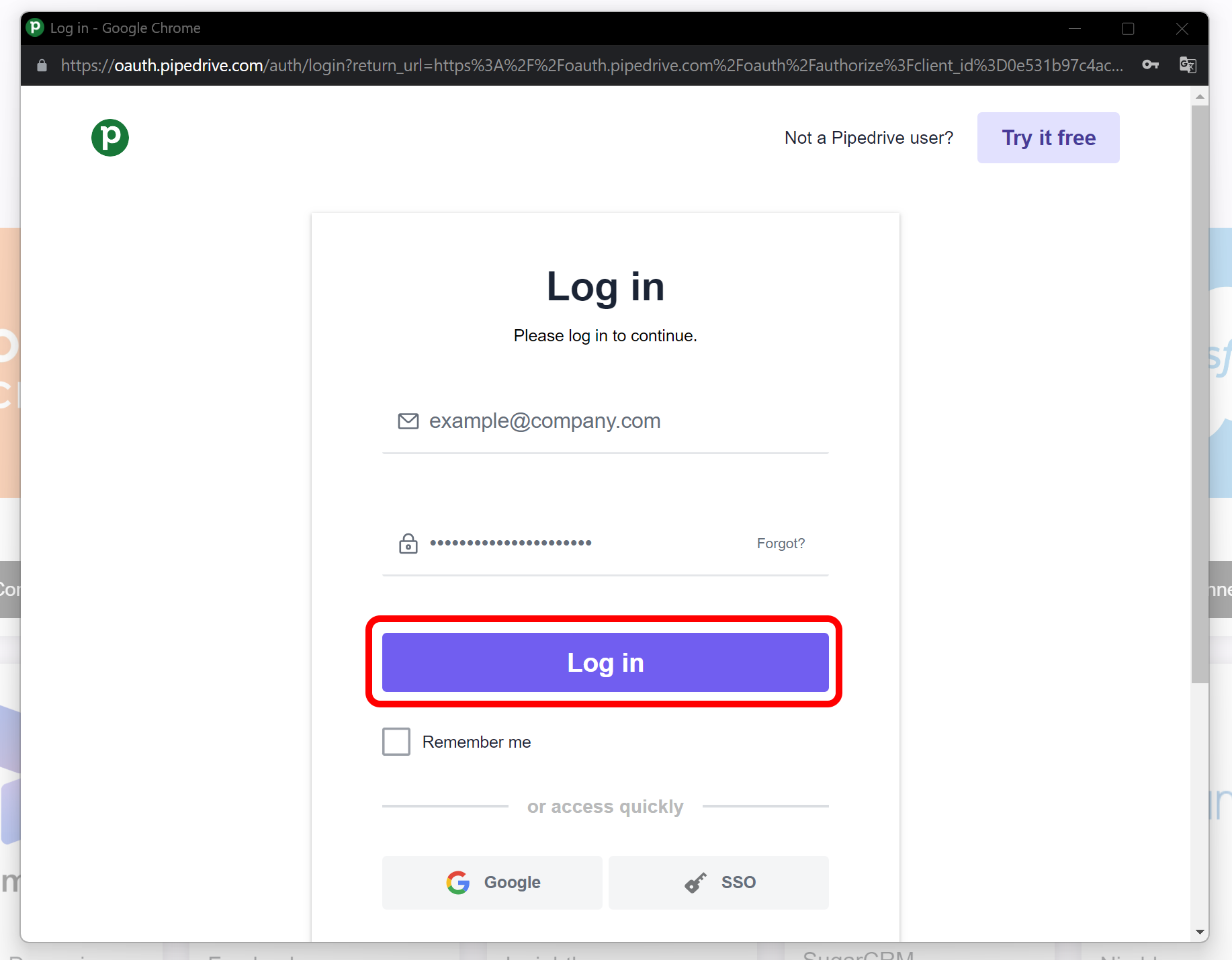
If you're not already signed in to your Pipedrive account, you'll be prompted to do so.
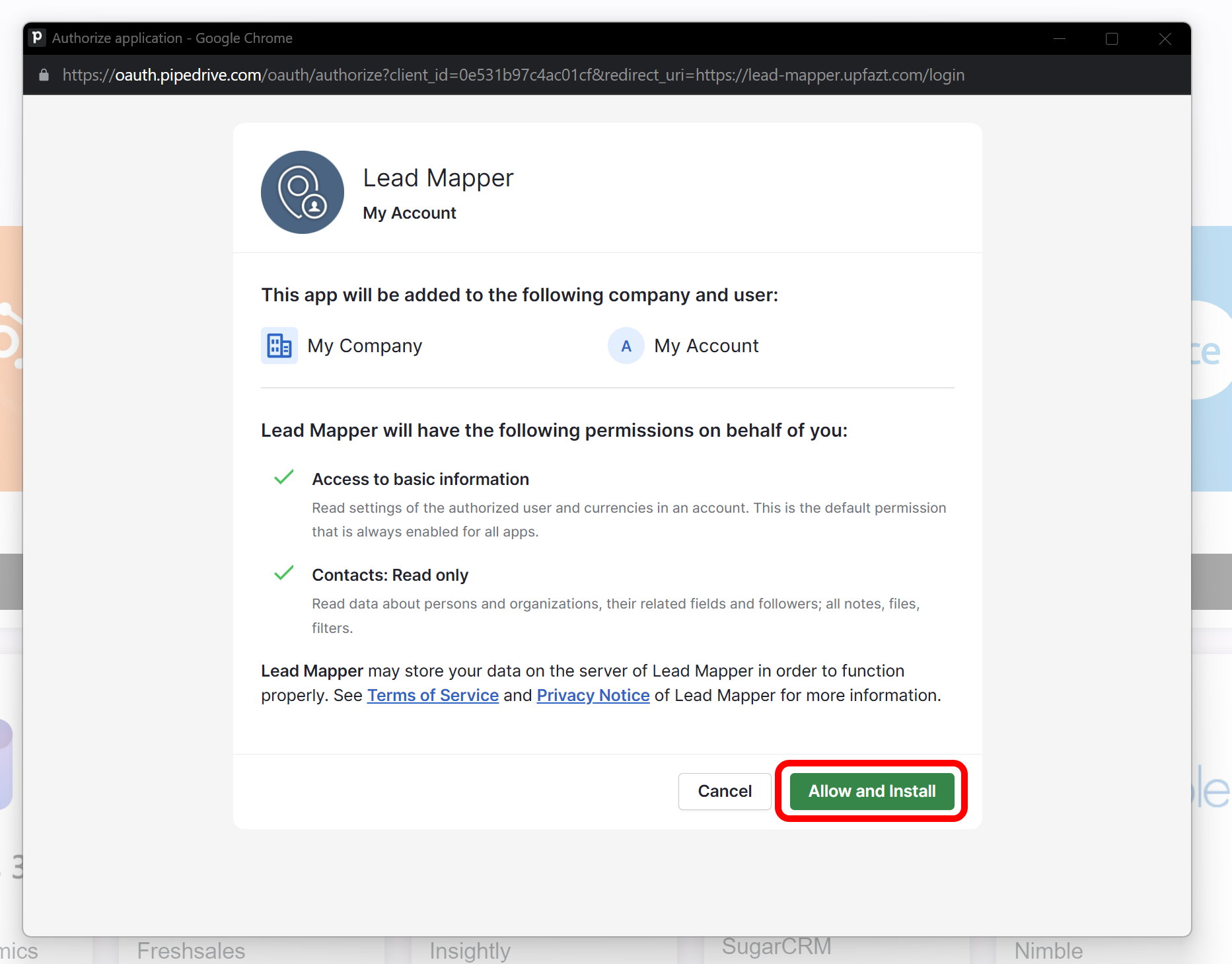
Click the "Allow and Install" button to finalize the connection.
Step 3: Wait for your account to be set up
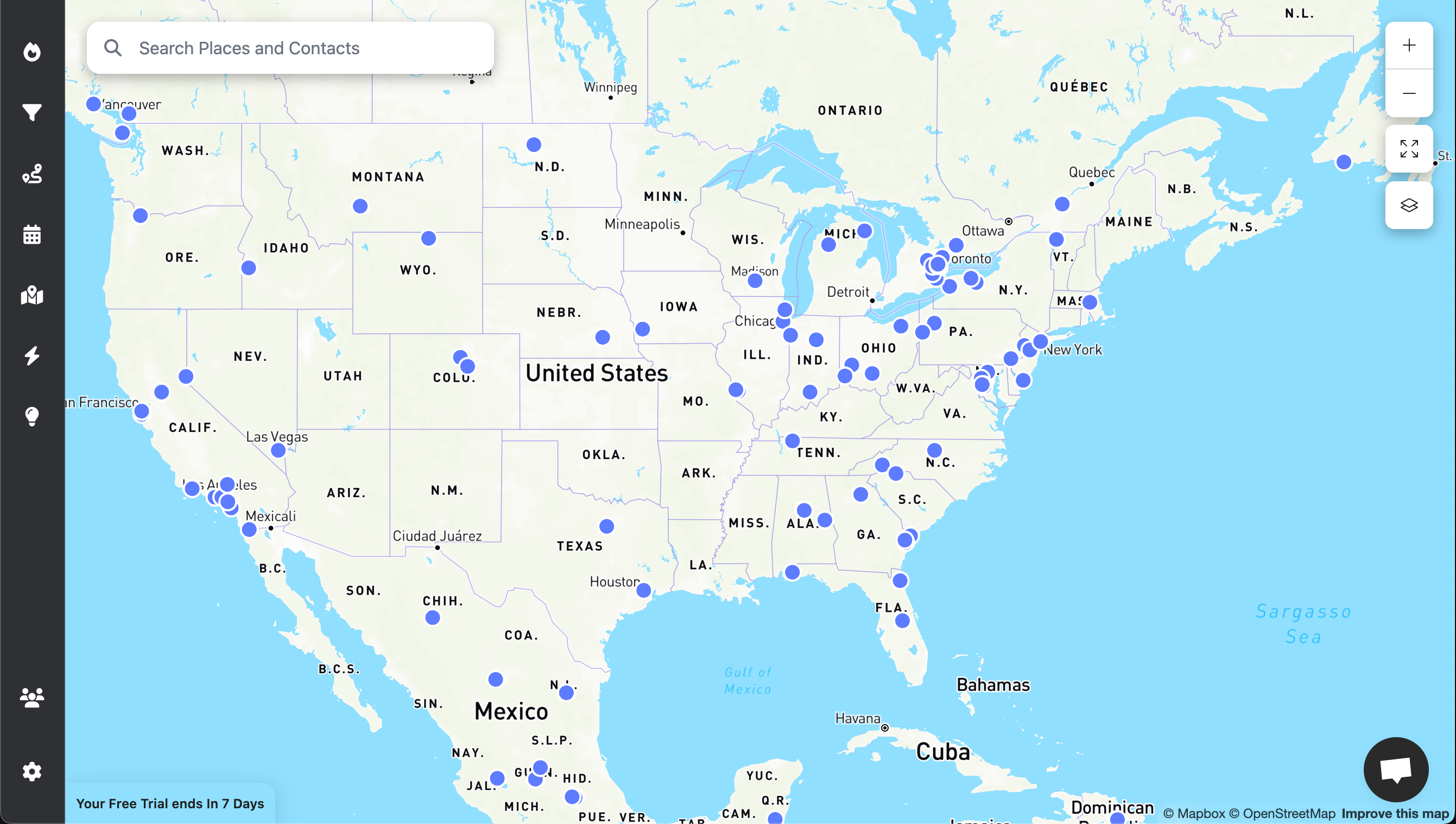
Once you’ve successfully connected your account, Lead Mapper will begin setting up your data and establishing a real-time synchronization channel with your CRM. This data process usually takes between 5 and 30 minutes.

As soon as your data is loaded, you're ready to harness the power of Lead Mapper. Enjoy the experience!
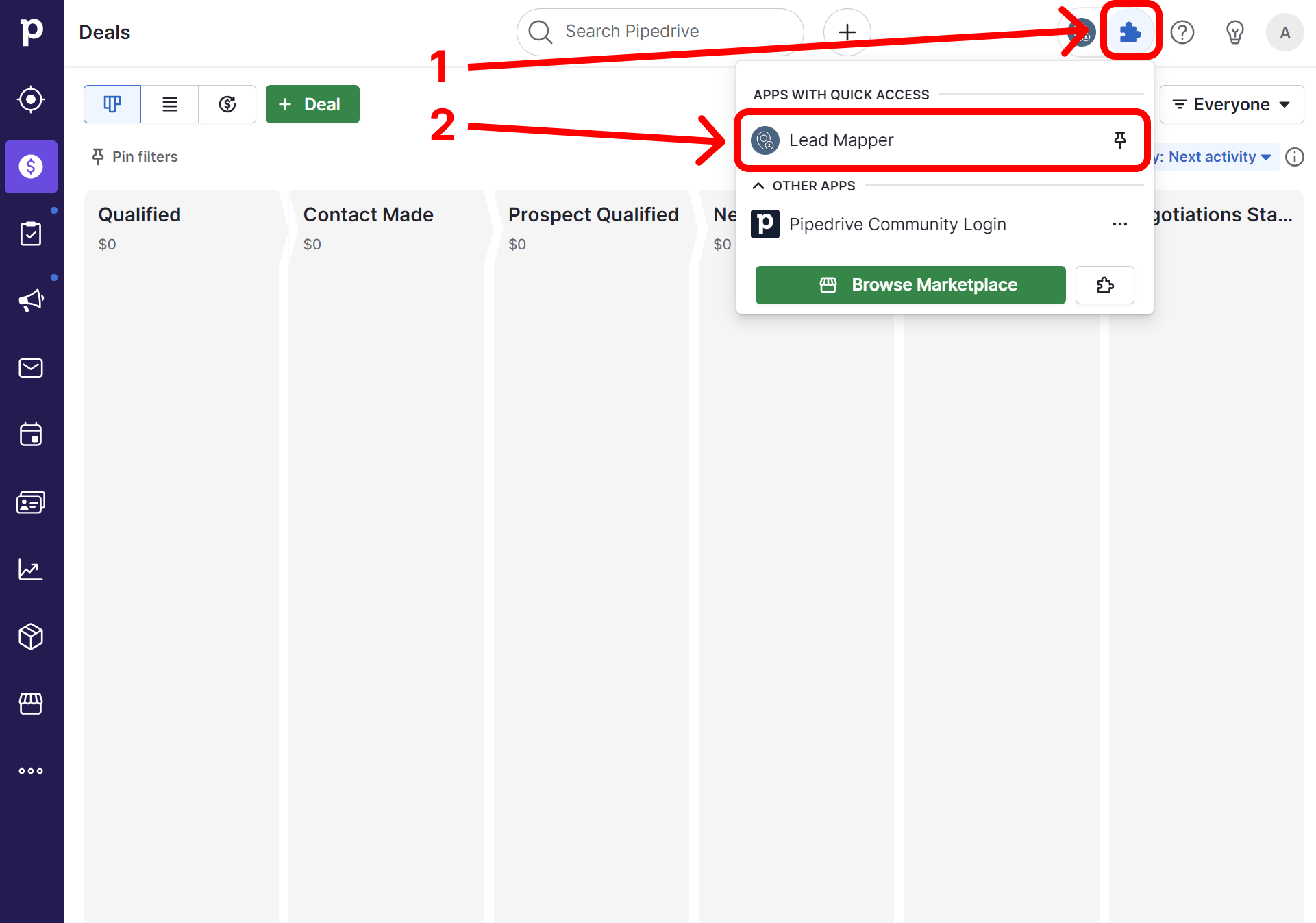
Step 4 (Optional): Access Lead Mapper inside Pipedrive
If you want the convenience of accessing Lead Mapper within your CRM, Open Lead Mapper by clicking on the puzzle icon in the header menu, then select "Lead Mapper"
Step 5 (Optional): Install the Mobile App
To access Lead Mapper on the go, install it from the App Store or Google Play Store: